
Built to work with your personal AI

Your AI knows how you work.
Now connect it to your business.

Use your compatible personal AI to work with the Advisory OS through MCP. Retrieve client information, run supported assessments and move agreed actions forward from the assistant you choose.

AI connection requires an active paid account with the appropriate access. Compatibility and actions depend on your assistant and permissions.

Already a paid client? Sign in to connect your AI.

AI that helps do the work

Find the cost to cut.
Find the work to automate.

Two practical tools connect the business information already on file to a plan your own compatible AI can help you carry out.

AI cost reduction

Cut expenses with AI

Start with the statements on file. Group recurring charges by merchant across twelve expense categories, surface potential leaks and prepare a keep, cut or replace review.

  • See the charges and annual cost worth reviewing.
  • Use prepared prompts to investigate alternatives through your own AI and its connected accounts.
  • Review potential savings before deciding what to change.

The owner approves each change. The tool does not independently cancel subscriptions, downgrade services or commit to purchases.
AI deployment and automation

Put your AI to work

The AI Automation tool identifies jobs the owner’s existing assistant could help with, who does the work today, potential hours returned each week and what that time may be worth.

  • Identify practical use cases in the business’s own workflow.
  • Prioritise opportunities by potential time and value.
  • Follow setup steps in order, using compatible tools and human review.

The Academy teaches the deployment method. The OS gives you tools to apply it in your own practice and with clients.

Your AI + your operating system

Your own AI. Connected to the work that matters.

Exec Leverage connects your compatible personal AI to your advisory workflow through MCP, the Model Context Protocol. Ask about a client, retrieve saved information or run a supported tool from the assistant you choose.

See how your AI connects

Example requests

“Pull the latest valuation and agreed actions for this client.”

“Help me configure my white label advisory account.”

Inside the owner workspace

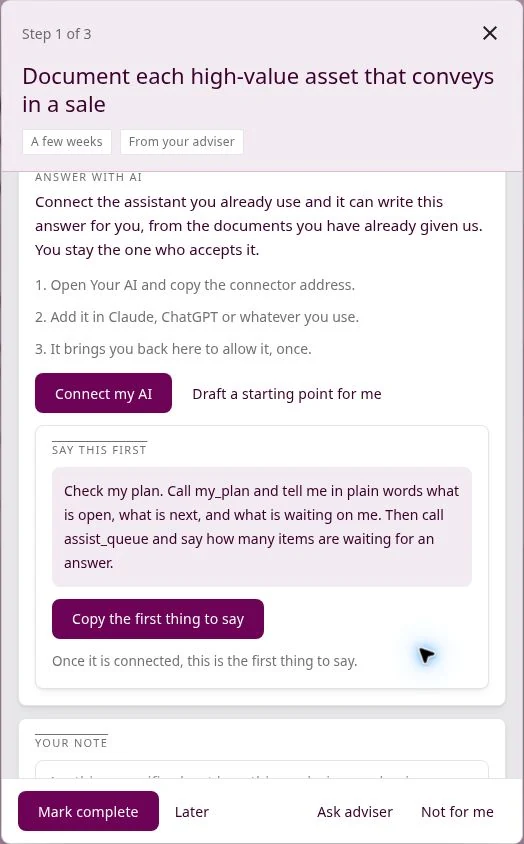
An owner task in the demo: connect a personal AI, request a draft and review it before accepting.
AI helps prepare the answer. The owner stays the one who accepts it. Availability depends on the connected assistant and enabled tools.

Run your practice

Work with your compatible AI on white label account setup, account checks and client information through supported MCP tools.

Move client work forward

Let owners bring their own compatible AI into the work: review assigned tasks and carry out supported actions with human review.

Learn it. Use it. Deliver it.

The Academy teaches practical AI deployment. Apply that approach in your own advisory business using the OS you deliver client work through.

Explore the Academy and AI Deployment module
From question to useful work

The conversation is connected to the client record.

The OS provides the business context and supported tools. Your connected assistant helps you use them. You review the information, decide what matters and control what happens next.

01

Explore, then connect

Start with a demo or the Advisory OS overview. Once you have an active paid account, use its connection settings to choose a compatible assistant and authenticate.

02

Ask about the work

Retrieve a client’s latest saved result, request a business assessment or review the actions in a value improvement plan using the tools available to your role.

03

Review and act

Check the assumptions and proposed action. Use supported tools to record progress, then return to the client record to continue the engagement.

Current MCP capabilities

Real tools behind the conversation.

From preparing financial inputs to running AI tools and configuring your own firm, these workflows connect the conversation to real work in the OS. Your role, write permissions and enabled tools determine what your assistant can do.

Reads what is saved

  • List Clients

    Every client you can open, with the id the other tools need.

  • Latest Result

    The most recent saved result for one tool on one client, without running it again.

  • Value Journey

    How much value the owner has added since they started: the starting figure, today's figure, the dollar change, and the tasks finished so far.

  • Numbers on file

    Review each year’s financial figures, their source, confidence, missing inputs and items needing a second look.

  • Numbers history

    Trace statement ingestion, accounting pulls, manually entered years and later changes, including who made them.

  • Help Guide

    Ask how a tool or workflow works, from prospects and client intake to valuations and information memoranda.

  • Firm setup

    Review your firm’s white label setup, incomplete steps and required DNS records. Re-check a domain after the records are added.

Runs business and AI tools

  • Featured AI tool

    Cut expenses with AI

    Review statements already on file, group recurring merchant charges across twelve expense categories and prepare a keep, cut or replace sweep. Includes prompts for investigating alternatives with your own connected AI. The owner approves each change before anything is cancelled, downgraded or purchased.

  • Featured AI tool

    AI Automation

    Identify work the owner’s existing AI could help with, who does it today, potential hours returned each week and what that time may be worth. Receive setup steps in order for practical deployment.

  • Business Score

    One score out of 100 for how the business is doing, built from the money, market and location tools. Shows which part is pulling the score down.

  • Business Valuation

    What the business is worth today, with the range and the inputs it used. Needs at least one year of financials on file.

  • Unit Economics

    Whether the business earns enough to cover its debt, pay the owner and keep cash on hand. Reads the financials on file.

  • Owner Add-Backs

    Records what the owner pays themselves, personal costs run through the business and one-off expenses, then recalculates earnings and the valuation with those added back.

  • Lender Readiness

    The credit read a bank would form from these books: six banking measures against lender targets, a grade with a plain note, and an SBA 7(a) approval probability. Yearly rent on file sharpens it.

  • Growth Plan

    A ranked list of what to do next, each with the dollars it is worth and why it came up. Reads every tool already run on the client.

  • Risk Profile

    The outside shocks this business is most exposed to, from interest rates to local demand, with the steps that reduce each one.

  • Price Position

    How the owner's prices compare with nearby competitors, and the room there is to raise them. Uses the price book when no price is entered.

  • Service Pricing

    Summarizes the price book the owner uploaded: how many services, the spread, and the typical price other tools then use.

  • Whitespace Opportunity

    Where demand in the area is not being served, and which competitor weakness the owner can aim at.

  • Referral Builder

    The partner businesses worth courting for referrals, with a first outreach message drafted for each.

  • Marketing Strategist

    A marketing plan sized to this business and this neighbourhood, with the campaigns to run and what each should return.

  • Customer Acquisition Cost

    What it costs to win one customer and what that customer is worth back, so the owner can see if marketing is paying off.

  • Location Quality

    How good the address is for this kind of business: who lives in the trade area, what is nearby, and how easy it is to reach.

  • Market Structure

    How attractive this industry is in this region right now, measured against benchmarks for the same trade.

  • Local Market Scan

    The competitors, demographics and foot traffic within a widening ring around the address. Other tools read what it finds.

  • Tool Analyst

    A plain reading of one tool's latest result: the verdict, what stands out, and what to look at next. It explains the numbers, never changes them.

Updates data, plans and setup

  • CIM buyer link

    Retrieves or creates a shareable link to a published client information memorandum, subject to the document’s access settings.

  • Valuation report link

    Retrieves or creates a shareable link to the most recent published valuation report on file.

  • Journey Action

    Marks a supported value lifting task done or skipped and returns the refreshed progress.

  • Change the numbers

    Save an authorised correction to a year’s financial figures, with the change recorded against the connection. Review the numbers on file first and use the actual statement lines.

  • Pick which numbers count

    Choose which statement is used when more than one covers a year. See affected years and which saved results now rely on older inputs.

  • Add a statement

    Submit a profit and loss, balance sheet or bank statement PDF for ingestion. Extracted figures are put on file and returned for review. This workflow does not retain the original PDF itself.

  • Set your firm’s brand

    Configure product name, colours, support and reply-to addresses, sender name and logo links. Preview the proposed changes before confirming them.

  • Claim your OS address

    Set the address for your firm’s branded OS and obtain the DNS records to add. Preview the address first, then verify after configuration.

  • Claim your sending domain

    Configure the domain used for your firm’s outgoing email and obtain its DNS records. Preview first and verify once those records are added.

  • Enable white label

    Review setup readiness and the white label addendum. Activation requires completed prerequisites, explicit confirmation and acceptance by the firm owner.

A useful connection starts with clear boundaries.

Account permissions matter

Your role and the server’s authorization rules determine access. A connection should expose only the information and actions available to that account.

Data still moves

When you request information, the tool response is sent to your connected assistant. Review your AI provider’s terms before using client information.

Keep control of changes

Review outputs and consequential actions. Use the connection controls available in your account to manage access and follow current credential guidance.

Connection address

Use the authentication instructions shown inside your account. This address alone does not authenticate a connection.

https://app.execleverage.com/api/mcp
Learn in the system you use

Build the capability in your own practice first.

The Academy pairs a repeatable advisory method with hands-on use of the Advisory OS. Its AI Deployment module helps you assess workflows, choose practical use cases and plan adoption. Apply that approach to your own business, then bring the experience to client work.

Explore the Academy

Questions before you connect?

Can I use my own AI assistant?

Use a compatible assistant that supports the MCP transport and authentication required by your account. Available actions depend on the connected assistant, your role and the tools enabled for you. Check the current connection instructions inside the OS.

What can my AI do?

Read client information and financial history, ingest supported statement PDFs, correct authorised figures, choose the source statements tools use, run business and AI tools, update supported plan actions and configure permitted firm branding and domain settings. Available actions depend on role, write permission and the connected assistant.

Can my clients use their own AI?

The owner experience is designed to connect business information and assigned work with a compatible personal AI. Clients can review tasks and use supported actions available to their role. An assistant cannot automatically complete every task in a business.

Does MCP keep all information away from AI providers?

No. Information returned by a tool is shared with the connected assistant to answer the request. Its provider’s processing and retention terms still apply. MCP is a connection protocol, not a guarantee of privacy, security or data residency.

Do I need a paid account to connect?

Yes. AI connection settings are part of the paid product and require the appropriate account access. This public page explains the capabilities. Book a demo or explore the Advisory OS first; existing paid clients can sign in to configure their connection.

Is the Academy required to use the OS?

The Academy is a pathway for professionals building an advisory practice or developing their method. Established advisors can explore the OS directly. The AI Deployment module teaches an approach you can apply in your practice and with clients.

Bring your AI into your advisory workflow.